
When you are writing or editing word documents, you may see flagging words only because they are not in MS-Word’s dictionary. You can compile, create and modify your own customized dictionaries in Microsoft Word and run spell checks using them. By this you can insert new words into the dictionary and can remove flags. This method is best useful for people who use a lot of technical terms in their documents.
In order to create own dictionary in word and run spell checks using those customized dictionaries, Follow these steps..
-
Add words to the Custom dictionary
When you run a spell check in Word, you’ll find that several words that aren’t incorrect are highlighted in red or green. This is because these words are not included in Word’s dictionary. In order to avoid these words from being highlighted, simply add them to Word’s Custom dictionary. For instance, in this document, the names of chemicals turn up in the “Not in Dictionary” section.
-
Click on "Tools > Spelling and Grammar" or press F7 to run the spell check.
-
When that particular word appears in the "Spelling and Grammar" dialog box, click on the "Add to dictionary" option.
Modify the Custom dictionary
Instead of adding words to the Custom dictionary one at a time, follow these steps to customize the existing dictionary.
-
Select "Tools > Options".
-
Click on the "Spelling and Grammar" tab
-
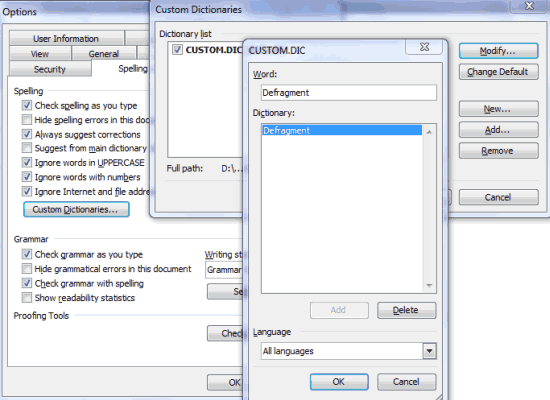
Under "Spelling", click on the "Custom Dictionaries" button.
-
Select "Custom.dictionaries" and click on "Modify".
-
In the "Word" text field, enter the word you want to add, for example, "defragment".
-
Click on "Add" and the word you just added will be in the list under "Dictionary"
-
Click "OK" twice.
-
Under the "Spelling" section in the "Options" dialog box, insert a check mark near the option "Check spelling as you type"
-
Click "OK" to apply the new settings.
The words that you inserted into the Custom dictionary will not be flagged by Word the next time you run the spell check.
-
Create a new Dictionary
If you’re working on a document related to a specific subject, such as biology or economics, which has its own terms that may not be in Word’s dictionary, it can be tedious to add each term to the dictionary. For this purpose, Word has an option whereby you can create your own dictionary and carry out a spell check using it. In the following steps, we will show you how to create and activate a medical dictionary.
-
Open a new Notepad file.
-
Type in words related to medicine. Each word should appear on a separate line
-
Check the list to see that there are no extra spaces before or after the terms.
-
Name the file “Medical dictionary” and save it as a plain text file (.txt)
-
Copy it to the folder C:\Documents and Settings\(Username)\Application Data\Microsoft\Proof.
Note: The folder will be invisible by default and you can make it visible by clicking on Folder Properties > View > Show hidden files, folders and drives > OK.
Activate the dictionary
The next time you work on a medical document, simply activate the dictionary so that words
specific to the subject don’t get flagged when you run the spell check.
-
Open the medical document that you are working on.
-
Select "Tools > Options"
-
Click on the "Spelling and Grammar" tab
-
Click on the "Custom Dictionaries" button
-
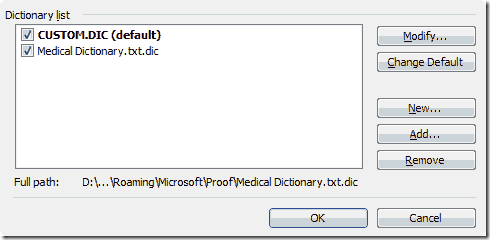
The new dictionary will appear in the Dictionary list.
-
Insert a checkmark next to "Medical dictionary".
-
Click "OK".
-
Ensure that the option "Check spelling as you type" is selected under the Spelling section.
-
To recheck the document using the new dictionary, click on the "Recheck Document" section under "Proofing Tools".
-
Click "OK"
Now only those words that are not listed in the Custom and Medical dictionaries will be flagged by Word.
Update the new dictionary
You can keep on adding or deleting terms from your medical dictionary as and when you come across a new term. Follow these steps to modify any of the dictionaries:
-
Select "Tools > Options".
-
Click on the "Spelling and Grammar" tab.
-
Click on "Custom dictionaries".
-
Select "Medical dictionary" and click on "Modify".
-
In the dialog box that opens, enter a new term and click on "Add".
-
Click "OK".
-
Make an Exclusion list
Word allows you to create and modify a new dictionary; however, you cannot make changes to Word’s inbuilt dictionary, that is, the LEX files. In case you don’t want Word to automatically correct a particular word or you want it to simply fag a word to see if the correct word is used in each context, you can create an exclusion list containing a list of words that you don’t want Word to fag when you run a spell check. For example, you might type "abut" instead of "about", but Word will not correct it since "abut" is also in the dictionary.
-
In a new Wordpad or Notepad file, enter the words that you want Word to flag when you run the spell check.
-
Ensure that each word is typed on a separate line with no spaces before of after the word.
-
Give the file an appropriate name and the extension ".EXC", the extension used for exclusion files.
-
Save the list as a plain text file (.txt).
-
To save the file in the location where Word can access it, select "Tools > Options".
-
Click on the "Spelling & Grammar" tab
-
Select "Custom dictionaries"
-
Click on "New" to add the dictionary to that particular folder.
-
Browse and select the exclusion list that you recently created.
You don’t necessarily have to insert a checkmark near the exclusion list file, it only has to be saved in the appropriate folder for Word to utilize it.
Copy the exclusion list to the dictionary folder
Instead of adding the exclusion list to the list of custom dictionaries using the “Custom dictionaries” button, follow these simple steps to insert the exclusion list in its right place.
-
Once you’ve created the exclusion list file, copy it.
-
Go to the Proof folder: C:\Documents and Settings\(Username)\Application Data\Microsoft\Proof
-
Paste your exclusion list file in this location.
The changes you’ve made to Word will only take place the next time you open Word, so close and reopen your document.
AmericanHealthJournal is looking for content partnerships with website owners in the health care genre. AHJ is a medicine site with over three thousand of high quality medicine videos. We are looking for individuals to submit guest blog articles to our website. Get in touch with us at our contact form on our web site.
You really make it seem so easy with your presentation however I to find this matter to be really something that I think I’d never understand. It seems too complicated and extremely vast for me. I am having a look ahead to your next put up, I will try to get the grasp of it!
Hi there, just became aware of your blog through Google, and found that it is really informative. I am gonna watch out for brussels. I will be grateful if you continue this in future. Many people will be benefited from your writing. Cheers!
It’s appropriate time to make some plans for the future and it’s time to be happy. I’ve read this post and if I could I want to suggest you some interesting things or advice. Maybe you could write next articles referring to this article. I desire to read even more things about it!
Great post. I was checking continuously this blog and I’m impressed! Extremely helpful information specifically the last part 🙂 I care for such info much. I was looking for this certain info for a long time. Thank you and good luck.
hello there and thank you for your information � I have certainly picked up something new from right here. I did however expertise some technical issues using this site, as I experienced to reload the site many times previous to I could get it to load properly. I had been wondering if your web hosting is OK? Not that I’m complaining, but slow loading instances times will very frequently affect your placement in google and could damage your high quality score if ads and marketing with Adwords. Well I am adding this RSS to my e-mail and could look out for a lot more of your respective fascinating content. Ensure that you update this again very soon..
Magnificent goods from you, man. I’ve understand your stuff previous to and you are just extremely magnificent. I actually like what you have acquired here, certainly like what you’re saying and the way in which you say it. You make it entertaining and you still care for to keep it sensible. I can’t wait to read much more from you. This is actually a great web site.
Pretty nice post. I just stumbled upon your weblog and wanted to say that I have truly enjoyed surfing around your blog posts. After all I will be subscribing to your rss feed and I hope you write again very soon!
I like the valuable info you provide in your articles. I will bookmark your weblog and check again here regularly. I’m quite sure I will learn plenty of new stuff right here! Good luck for the next!
I think this is one of the most vital info for me. And i’m glad reading your article. But wanna remark on few general things, The web site style is great, the articles is really great : D. Good job, cheers
We’re a group of volunteers and starting a new scheme in our community. Your website provided us with valuable info to work on. You have done an impressive job and our whole community will be grateful to you.
Unquestionably believe that which you stated. Your favorite reason seemed to be on the web the easiest thing to be aware of. I say to you, I definitely get annoyed while people consider worries that they just don’t know about. You managed to hit the nail upon the top as well as defined out the whole thing without having side effect , people can take a signal. Will probably be back to get more. Thanks
This is really interesting, You’re a very skilled blogger. I have joined your rss feed and look forward to seeking more of your great post. Also, I have shared your site in my social networks!
Hello There. I found your blog using msn. This is a very well written article. I�ll make sure to bookmark it and return to read more of your useful information. Thanks for the post. I will certainly comeback.
I loved as much as you will receive carried out right here. The sketch is tasteful, your authored subject matter stylish. nonetheless, you command get bought an nervousness over that you wish be delivering the following. unwell unquestionably come more formerly again since exactly the same nearly very often inside case you shield this hike.
Hello, i think that i saw you visited my website thus i came to �return the favor�.I am attempting to find things to enhance my web site!I suppose its ok to use a few of your ideas!!
Simply wish to say your article is as astonishing. The clarity in your post is simply nice and i can assume you are an expert on this subject. Well with your permission let me to grab your RSS feed to keep up to date with forthcoming post. Thanks a million and please keep up the enjoyable work.
Its like you read my mind! You seem to know a lot about this, like you wrote the book in it or something. I think that you can do with some pics to drive the message home a bit, but instead of that, this is great blog. An excellent read. I’ll definitely be back.
Thank you for the good writeup. It in fact was a amusement account it. Look advanced to more added agreeable from you! By the way, how could we communicate?
Hey there, You’ve done a fantastic job. I�ll definitely digg it and personally recommend to my friends. I am confident they’ll be benefited from this site.
Great beat ! I would like to apprentice while you amend your site, how can i subscribe for a blog site? The account helped me a acceptable deal. I had been tiny bit acquainted of this your broadcast offered bright clear idea
I’m really impressed with your writing skills and also with the layout on your blog. Is this a paid theme or did you customize it yourself? Anyway keep up the excellent quality writing, it is rare to see a great blog like this one these days..
Attractive section of content. I just stumbled upon your weblog and in accession capital to assert that I get actually enjoyed account your blog posts. Any way I�ll be subscribing to your feeds and even I achievement you access consistently rapidly.
My brother suggested I might like this blog. He was totally right. This post truly made my day. You can not imagine just how much time I had spent for this info! Thanks!
I don�t even know how I ended up here, but I thought this post was good. I do not know who you are but certainly you are going to a famous blogger if you are not already 😉 Cheers!
Heya i�m for the first time here. I found this board and I find It truly useful & it helped me out much. I hope to give something back and aid others like you helped me.
I was suggested this blog by my cousin. I am not sure whether this post is written by him as no one else know such detailed about my difficulty. You’re wonderful! Thanks!
Great blog here! Also your web site loads up very fast! What web host are you using? Can I get your affiliate link to your host? I wish my web site loaded up as fast as yours lol
Wow, incredible blog layout! How long have you been blogging for? you made blogging look easy. The overall look of your site is fantastic, as well as the content!
I�m not sure where you are getting your information, but great topic. I needs to spend some time learning much more or understanding more. Thanks for fantastic info I was looking for this info for my mission.
You really make it seem so easy with your presentation but I find this matter to be actually something which I think I would never understand. It seems too complicated and very broad for me. I am looking forward for your next post, I�ll try to get the hang of it!
I have been browsing online more than three hours today, yet I never found any interesting article like yours. It is pretty worth enough for me. Personally, if all web owners and bloggers made good content as you did, the net will be much more useful than ever before.
Hi, at the moment I am searching with my iphone four new style suggestions and so I’ve discovered your web site. Your design and style is genuinely straightforward but also compare it for your posts. I think I would use it for my initial draft. Thank you for this idea!