
Sometimes cells contain logical or mathematical errors that need to be printed. How do you enable printing these errors on paper as proof? If you want the cell errors to be displayed in your printed Excel spreadsheets, you can choose to blank out all error values, or you can convert all cells with errors to show as ‘#N/A’ or a couple of dashes. You can print errors of MS-Excel cells using this procedure..
- In your Excel 2007 worksheet, click on the ‘Page Layout’ tab. ( In Excel 2003, go to ‘File > Page setup’).
- In the ‘Page Setup’ section, click on the ‘Print Tiles’ button.
- In the ‘Page Setup’ dialog box that appears, click on the ‘Sheet’ tab.
- Under the ‘Print’ section, click on the ‘Cell errors as’ dropdown list and select an option according to your preference.
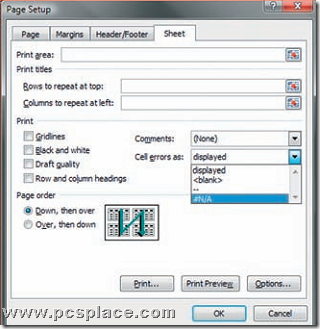
For example, selecting the ‘Displayed’ option will print cells with errors as they appear.
- Click on the ‘Print Preview’ button to check how your printed page will appear.
- Click ‘OK’ after making your selection.