
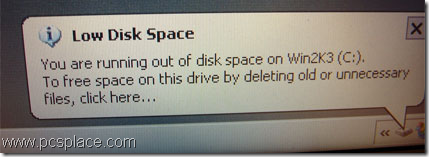
You get a lot of annoyances in Windows XP. One common irritant is the low disk space warning that comes popping up repeatedly when a partition is low on free space. After the first time, this warning contains no fresh information,and is only an annoyance. You’ll need to spend less than a minute in the Registry to disable this warning. Here is the procedure..
-
Open the Registry Editor by going to Start > Run,typing in “regedit” and hitting [Enter].
-
Navigate to “HKEY_CURRENT_USER\Software\Microsoft\Windows\CurrentVersion\Policies\Explorer”.
-
Right-click on a blank area on the right side of the editor and create a new DWORD value. Name it “NoLowDisk-SpaceChecks”, double-click on it and enter the value “1”.
-
Click on OK and exit the Registry Editor.
Other way When you restart your computer, the warning will be turned off and you won’t get any more warnings when you have low disk space.
Actually, it is a headache when encounter “low disk space” warning. However, we can solve this problem with some partition utilities.
For example, Partition Magic which made by PQ is a computer program for partitioning hard disk for Windows 7/vista/xp.As a Partition Magic alternative, Partition Assistant is also good choice. It is available for both Home and Server users.You can free download via http://www.extend-partition.com/download.html and check how it works!
NoLowDiskSpaceChecks NOT NoLowDisk-SpaceChecks
I tried this fix and as soon as the computer came back on, there it was again! Anything else I can do? It references Disk D, which has nothing on it!