
By default, Microsoft PowerPoint 2007 compresses images put into a presentation while saving. While this saves file size, it can result in a loss of quality – which you might not always want. To disable Image compression ..
- Select the Office Button > Save As.
- Then select Tools > Compress Pictures.
- Click Options.
- Uncheck the box against Automatically perform basic compression on Save.
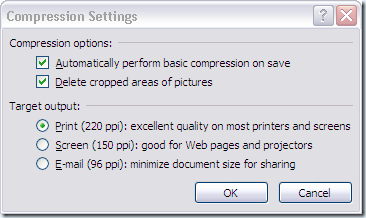
You can also change the density (pixels per inch) of the images saved. Keep in mind that this option will only be set for the current presentation, which means you have to do this over again when you work on another presentation.
- To enable this for all the presentations you make, you need to turn to the Registry (back up your Registry before proceeding). Start the Registry Editor.
- Navigate to HKEY_CURRENT_USER\Software\Microsoft\Office\12.0\PowerPoint\Options.
- Create a new DWORD here. Call it AutomaticPictureCompressionDefault. The default value will be 0.
- This disables the automatic compression of pictures. If at anytime you want it enabled, double-click the DWORD and change its value to 1.
Thank you for providing this awesome article. Check out mine!
Works a treat. Thank you so much for that.
thanks, I applied this for outlook 2007, too bad the moment you apply a “picture effect” it renders the image so badly that it “appears” compressed (it isn’t)..