
When adding text boxes, Microsoft Word normally creates these with a frame and in the Times New Roman font. These default settings might not be suitable for your tasks at all. A solution for the default frame is found quickly and using this you can change the Text Box setting to removing frame and define another font. The font is however set by the “Standard” format template. When you modify this general format template, you can also adjust the font in text fields; this can otherwise be dome through “AutoText”.
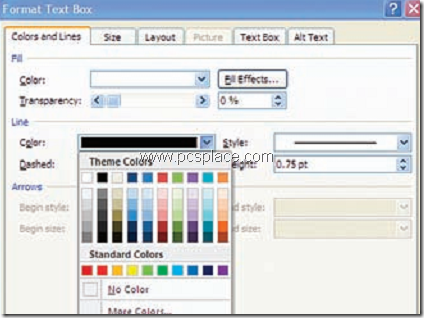
GETTING RID OF THE FRAME:
In order to remove the frame,
-
First insert a text box into any document.
-
Then right-click the frame and select the “Format text box” context command.
-
In the “Colors and lines” tab, search the “Color” field in the “Line” section.
-
Change the setting to “No line”.
-
Now make the other format changes, if any, which you want to use as default and confirm the dialog with “OK”.
-
Now right-click the frame of the text field again and select “Set Auto Form default”.
DEFINING ANOTHER FONT:
In order to do this,
-
Create an AutoText entry.
-
Format the font in the text field and mark the frame of the field, so that the cursor is not visible inside.
-
Then click “Insert > AutoText > New”, enter any name, Ex: “Text box 1” and click “OK”.
-
In the future, insert the predefined text field using the “Insert > AutoText” menu command or type its name in the text and then press [F3].
This does not work if you select a block of text and then draw text box around your selected text. tried it 3 times and still get a frame. I don’t get the frame if I draw an empty text box. Very very lame.