
Mouse is some thing which makes our life so easy. Everything can be done at the click of a button. The Windows context menu is a trusted tool, and I rely on it heavily. We can use this context menus in a way we like i.e., personalizing them or creating our own context menus.
Moo0’s Right Clicker makes several welcome additions to the default options. I particularly like the folder bookmarking feature, which makes it a snap to navigate between folders in any explorer view. Couple it with the copy to and move to features, and managing files and folders in Explorer is much simpler.
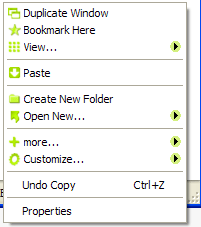
It also adds a "go up" option to the menu – much quicker than mousing up to the Explorer toolbar – and the ability to copy a file’s name or full path to the clipboard. Right Clicker’s duplicate feature will spawn a new window with the current location (even from a file dialog). I find this particularly useful when I’m uploading or editing something and notice some file system untidiness that needs to be addressed immediately.
Right Clicker is available in free and paid versions, and my only real gripe is that the advanced options are all visible but grayed out. You know, just to remind us what we’re missing out on. Still, it provides a nice set of functions that context menu aficionados are sure to welcome. Try it. Its worth it.
@madhur
You can use it for everything. For any context menu.
This is cool. Can it also be used to modify the right click which we do in applications like IE or Firefox.