
Here is a tutorial on how to delete or remove the Recycle Bin from the Desktop. We strongly recommend you to back up your registry before you do these changes. You can do it in 2 steps, using a registry editor and group policy editor.
Disclaimer: I am not responsible for any damage you may cause to your system as a result of following the steps described below.
Method 1:
- Open the Registry Editor.
- Navigate to HKEY_LOCAL_MACHINE\Software\Microsoft\Windows\CurrentVersion\Explorer\Desktop\NameSpace.
- Click on Edit, and then on Find. Search for {645ff040-5081-101b-9f08-00aa002f954e}.
- Delete it.
- Exit the Registry Editor
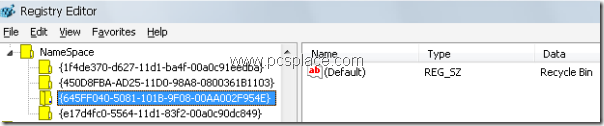
Wait for a moment. When you get back to the Desktop, the Recycle Bin icon will have disappeared. If you want to bring the Recycle Bin icon back to the Desktop, follow these steps: in the Registry Editor,
-
Navigate to HKEY_LOCAL_MACHINE\Software\Microsoft\Windows\CurrentVersion\Explorer\Desktop\NameSpace.
-
Right-click, then click on New, select Key, and key in “{645ff040-5081-101b-9f08-00aa002f954e}”
-
Exit the Registry Editor.
-
The Recycle Bin icon will have been restored.
Method 2:
Here’s another method to remove the Recycle Bin from the Desktop:
-
Open the Group Policy Editor by going to Start > Run > “gpedit.msc”.
-
Navigate to User Configuration > Administrative Templates > Desktop.
-
In the right pane, double-click “Remove Recycle Bin icon from desktop” and select Enable.
Good
thnxs
love u